
Hoe wijzig ik het Mozard wachtwoord?How do I change the Mozard password?
Als medewerker kun je zelf, via het inlogscherm of het ‘Profielscherm’, via optie Wijzig wachtwoord een wachtwoordwijziging aanvragen.
As a member of staff you can request a password change yourself, through the login screen or the ‘Profielscherm’, using the option Wijzig wachtwoord.
Na de aanvraag wordt hiervan direct een mailbericht gestuurd naar jouw e-mail adres met een link om het wachtwoord te wijzigen.
After the request, a mail message about it is sent straight away to your e-mail address, with a link to change the password.
Bij het opgeven van het nieuwe wachtwoord geef je deze 2 keer op als controle dat ze beiden gelijk zijn. Onthoud het wachtwoord goed.
When entering the new password, you enter it 2 times as a check that they are both the same. Make sure you remember the password.
Bij een wijzigingsaanvraag via het inlogscherm moet je na het wijzigen van het wachtwoord ook nog een extra beveiligingscode invoeren. Deze code krijg je via de mail of SMS direct na het versturen van je wachtwoord wijziging.
With a change request through the login screen, you also have to enter an extra security code after changing the password. You receive this code by mail or SMS immediately after sending your password change.
Indien de code sms/email onjuist is ingevoerd, wordt de foutmelding Code sms/e-mail onjuist getoond en verschijnt de knop Geef code via sms of Geef code via e-mail. De code wordt dan opnieuw verstuurd naar u voor een nieuwe poging.
If the sms/email code has been entered incorrectly, the error message Code sms/e-mail onjuist is shown and the button Geef code via sms or Geef code via e-mail appears. The code is then sent to you again for a new attempt.
Indien ‘wijzigen wachtwoord’ vanuit het profiel wordt uitgevoerd (dus vanuit een actieve sessie) is het niet nodig een bevestigingscode in te voeren.
If ‘wijzigen wachtwoord’ is carried out from the profile (so from an active session), it is not necessary to enter a confirmation code.
Het Mozard wachtwoord wordt berekend via een zogenaamde hash code, daarom is het wachtwoord voor niemand te herleiden tot een leesbaar wachtwoord. Ben je het wachtwoord kwijt dan vraag je zelf een nieuw wachtwoord aan.
The Mozard password is calculated through a so-called hash code, which is why the password cannot be traced back to a readable password by anyone. If you have lost the password, you request a new password yourself.
Wijzigen wachtwoord vanuit het inlogscherm:
Changing the password from the login screen:
Het scherm Wijzigen wachtwoord, zoals dat vanuit het inlogscherm wordt geopend, heeft rechtsboven de knop Wijzig wachtwoord, geef code via e-mail en de velden Inlogcode, Wachtwoord * en Nogmaals het nieuwe wachtwoord *.
The Wijzigen wachtwoord screen, as it is opened from the login screen, has the button Wijzig wachtwoord, geef code via e-mail at the top right and the fields Inlogcode, Wachtwoord * and Nogmaals het nieuwe wachtwoord *.
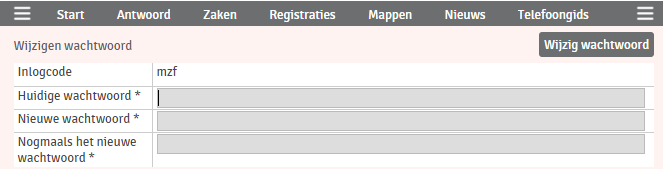
Wijzigen wachtwoord vanuit het profielscherm:
Changing the password from the profile screen: